Time saving features: 8 Asana tips to work faster now



Summary
Who couldn't use a little extra time?
Finding time for your daily priorities is tough, and making space to think and plan can feel impossible. If you’re feeling pressed for time, Asana is here to help. Try these tips to cut down on busywork and get more done, faster.
Let's get started.
Master AI-Powered Workflow Optimization
Ready to revolutionize your team's productivity with AI you can trust? Join industry leaders from Asana and Anthropic to learn proven strategies for implementing AI across your workflow stages and unlock the full potential of Asana's AI Studio.
1. Summarize information instantly
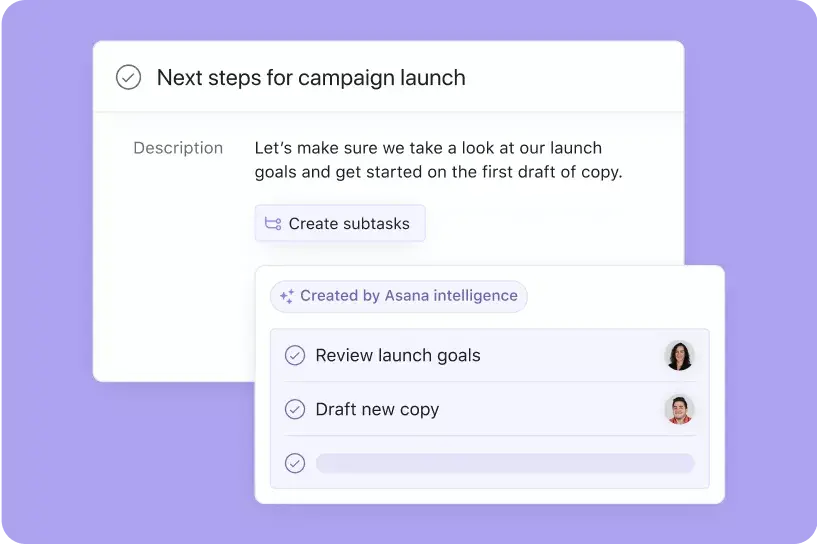
Time-saving features are tools that automate repetitive work so you can focus on what matters most. Asana AI includes smart summaries, which function like a personal assistant by automatically pulling out highlights and key action items from task descriptions and comments. Instead of sifting through long conversation threads, use AI to instantly summarize important points and document next steps.
To use smart summaries, click the three dots menu on the upper-right corner of a task. Then select "summarize task" or "create subtasks."
2. Enlist an AI editor
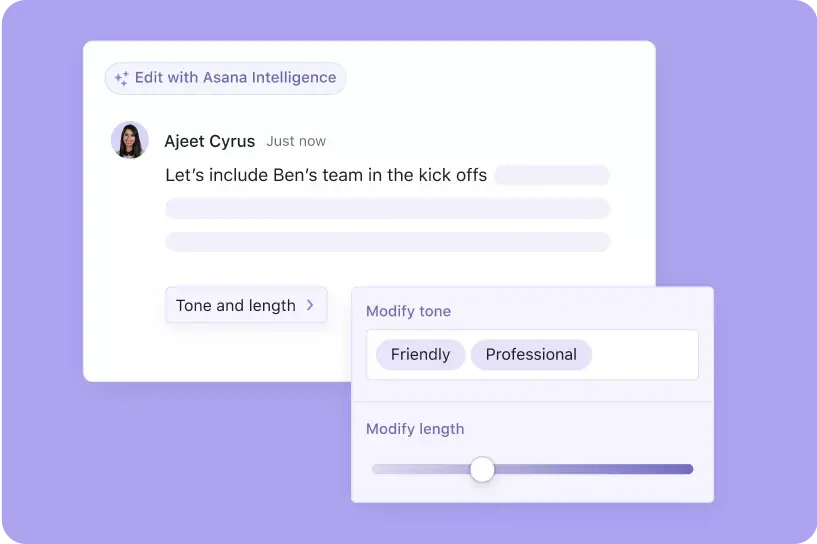
Do you ever spend too long trying to write the perfect reply? AI can help here as well. Asana’s smart editor lets you choose how much detail to include and what tone to use, so your writing matches your needs.
Just type a rough draft of your comment. Then, click the button to get an edited version, and use the sliders to set the detail and tone.
3. Automatically organize work
When organizing projects or setting up a consistent workflow, it can be hard to know how to start. How should you label work? What details do you need to document about each task?
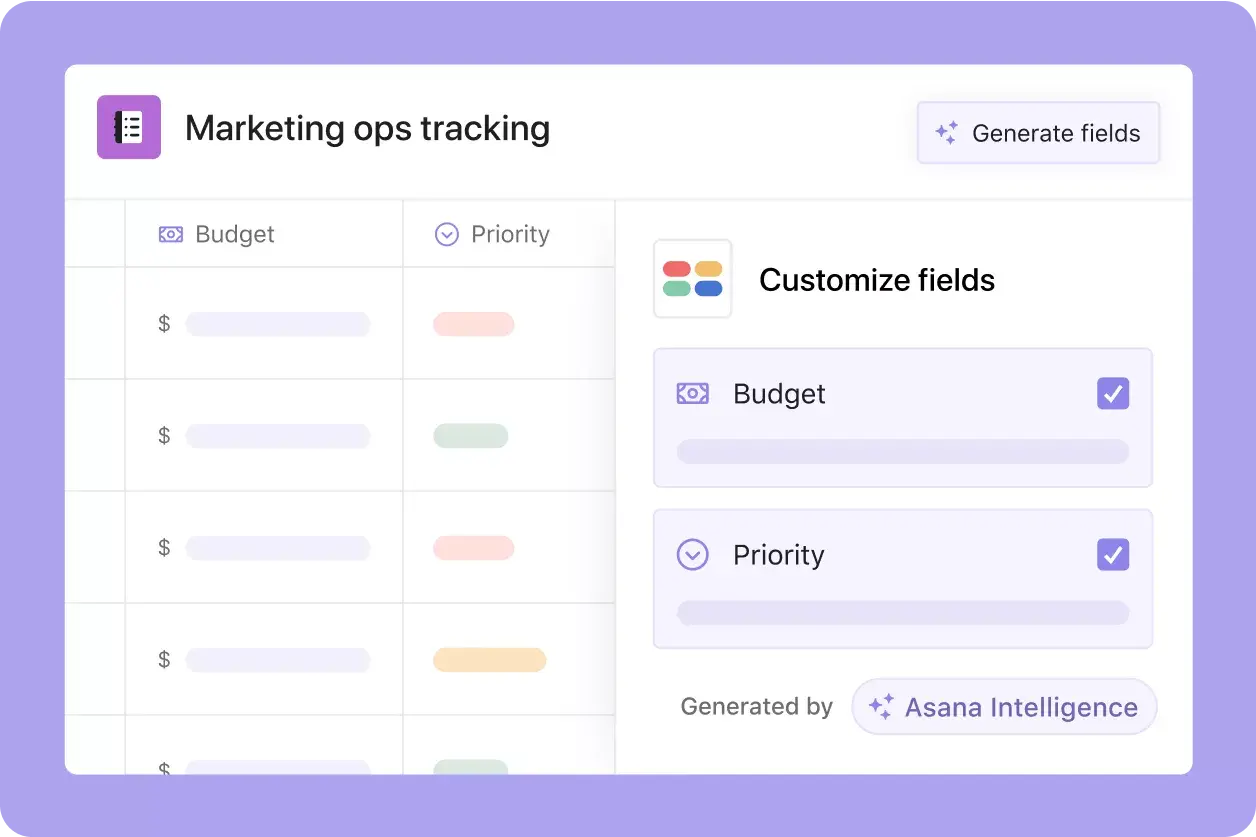
Asana's smart fields solve this problem by suggesting the best custom fields to add to your project. When you implement a suggestion, Asana instantly applies and populates those fields across your entire project.
Custom fields help you:
Sort tasks: Organize work by priority, status, or category
Filter views: See only the tasks that matter to you
Report automatically: Generate insights without manual data entry
4. Convert tasks into projects
If you've ever created a task that resulted in an endless list of subtasks, we've been there, and we can help.
With a few clicks, you can convert tasks into projects. Just select the three-dot menu in the upper-right corner of a task, click "convert to," then "project." This creates a project with the same title, description, and deadline as your task, and turns subtasks into tasks within that project.
5. Assign copies of a task
Need to assign the same task to multiple people at once? Instead of manually copying and pasting, you can assign copies to multiple teammates, or even a whole team, with just a couple of clicks from the task assignee field.
To assign copies of a task, click the assignee field in any task and then select the "assign copies" icon. Next, type the names of the teammates or teams you want to assign the copies to.
6. Bulk edit tasks with multi-select
Multi-select lets you update many tasks at once, so you don’t have to change each one by hand. If you’ve used this feature in other apps, you’ll find it just as helpful in Asana.
Here's how it works:
Toggle to list view
Click a task
Hold down shift
Click another task, or press the up or down arrows
Once you multi-select tasks, you can take bulk actions on them, like:
Assigning them all to one person
Giving them all the same due date
Dragging and dropping them somewhere
Updating a custom field on all of them
Adding all of them to a project
Marking them all complete or incomplete
Adding a collaborator
7. Create follow-up tasks from your inbox
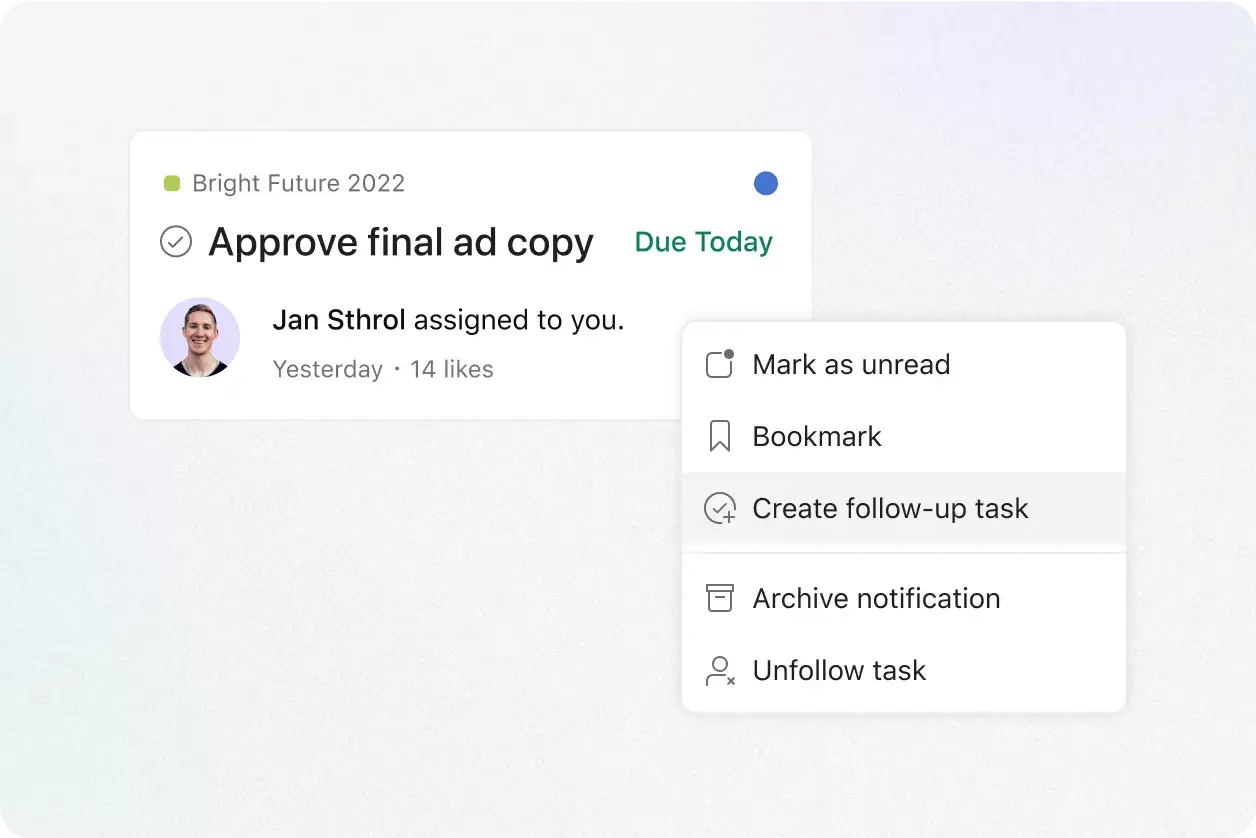
There's nothing more satisfying than inbox zero, and this tip can help you get there. Instead of bookmarking notifications you might forget, create a follow-up task with a few clicks to give yourself a concrete reminder. This approach lets you clear out your inbox without worrying about missing important updates.
To create a follow-up task, open a notification in your inbox and click the three dots menu in the upper right corner. Then, select "create follow-up task." This will assign a task to you, with a link to the original notification.
8. Move quickly with keyboard shortcuts
One of the keys to saving time in Asana is learning keyboard shortcuts, so you can perform actions instantly by pressing a few buttons. You can see all keyboard shortcuts here or by typing Cmd+/ or Ctrl/ in Asana.
Here are some time-saving favorites:
Tab+Q: Quick add task
Tab+M: Assign to me
Tab+X: Focus mode (this zooms in on a single task and blocks out everything else)
Tab+S: Add a subtask
Tab+N: Create a section
Tab+P: Add to a project
Tab+↵: Jump to task list/main pane
Reclaim your time
Here's a quick recap of all eight time-saving tips:
Tip | What it does |
Smart summaries | Instantly pulls key points from task threads |
Smart editor | Adjusts your writing for tone and detail |
Smart fields | Suggests and auto-populates custom fields |
Convert tasks to projects | Expands complex tasks into full projects |
Assign task copies | Sends the same task to multiple people |
Multi-select | Bulk edits many tasks at once |
Follow-up tasks | Creates reminders from inbox notifications |
Keyboard shortcuts | Performs actions instantly with key commands |
With these time-saving tips, you can take back your day and focus on your most important work. Get started today to see how much time you can save, or visit our pricing page to learn more and sign up for a free trial.
Don’t let endless tasks and messages slow you down. Spend a few minutes trying these strategies; your future self will be glad you did.
Explore AI features